6/14/2026
EPG Not Loading? Here's Every Cause and the Fix
Provider-side, URL-side, app-side — we cover all three so your IPTV electronic program guide actually shows up.
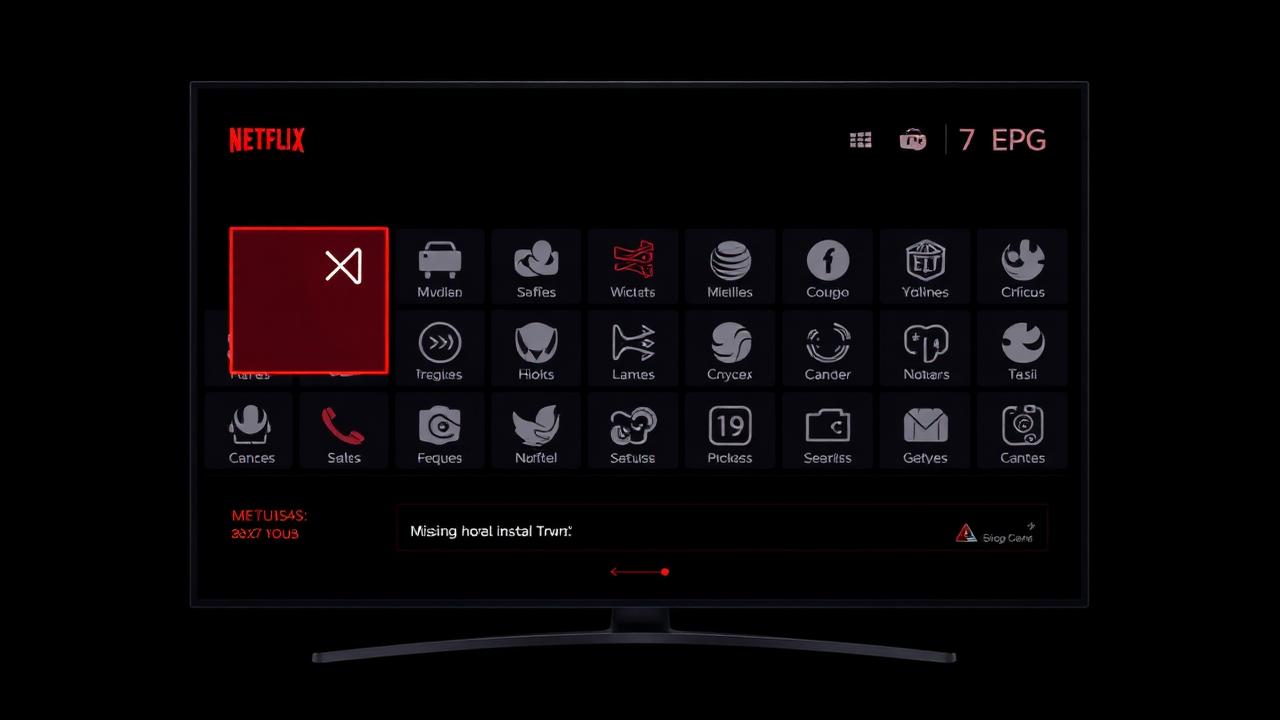
An EPG (Electronic Program Guide) that won't load is one of the most reported IPTV problems. It comes from one of three places: your provider, your EPG URL, or your player app. This guide walks each layer in order.
Step 1 — Confirm the Provider Actually Sends an EPG
Not every IPTV line includes EPG data. Log into your provider's customer panel or Xtream Codes portal and look for an XMLTV URL or EPG URL. If it's missing, no app on earth will show a guide — you need to ask your provider for it.
A working URL looks like:
http://your-provider.com:8080/xmltv.php?username=USER&password=PASS
Step 2 — Test the EPG URL Outside the App
Paste the URL into a desktop browser:
- 200 OK + XML loads → EPG is fine; the problem is in your app.
- Times out → provider's EPG server is down or your IP is blocked.
- 403 / 401 → wrong username, expired subscription, or wrong port.
- Loads but empty → provider stopped publishing guide data.
Step 3 — Refresh and Re-Add the EPG in Your Player
TiviMate
- Settings → EPG → EPG Sources → Add EPG source.
- Paste the XMLTV URL.
- Set Update interval to 12 hours.
- Hit Update EPG now.
IPTV Smarters Pro
- Settings → External Player Settings → EPG URL.
- Paste, save, restart the app.
XCIPTV
- Settings → General Settings → EPG URL.
- Save, then Update XMLTV EPG from the side menu.
Step 4 — Time Zone and Date Drift
If channel names show but program times are off, your time zone or device clock is wrong. Set the Firestick / Android TV to Automatic date and time and the player's EPG offset to 0 hours (let the device handle it).
Step 5 — App-Side Cache Corruption
A corrupted EPG database forces the app to show empty cells. Clear it cleanly:
- Settings → Apps → Manage installed applications.
- Pick your player → Clear cache then Clear data.
- Re-add playlist and EPG source.
Step 6 — Channel-ID Mismatches
Some providers send playlists where tvg-id values don't match their EPG. The EPG loads but maps to no channels. Fix:
- Edit the M3U so each channel's
tvg-id="..."matches an<channel id="...">in the XMLTV. - Or switch player to one that supports channel mapping by name (TiviMate Premium).
FAQ
How often should my EPG refresh?
Every 6–12 hours. More often hammers the provider and can get you rate-limited.
Can I use a third-party EPG?
Yes — services like EPG.best or epg-guide.com publish free XMLTV feeds you can point your player at.
EPG works on one device but not another?
The blank device has a stale cache, wrong time zone, or no internet permission for the player. Clear data on that device and try again.
Related community threads
- EPG shows wrong time zone — off by a fixed number of hours — community thread in the EPG category.
- Try the AI Troubleshooter if none of the fixes above match your setup.
- Fresh install? See our Setup Guides for step‑by‑step EPG wiring on each player.